

Please review this list of FAQs before posting in the FB group or sending an email since it may be answered already.
Question 1: I can’t see shapes when I draw them – what do I do?
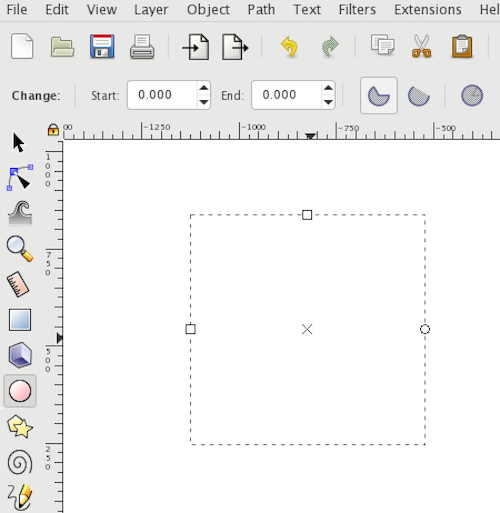
If the image above looks familiar, it is because you’ve accidentally modified your color fill settings so that your shape is transparent (hence why you can’t see it) 🙂 Not to worry though, it’s an easy fix and now you’ll know how to solve it next time.
Here’s how to fix it:
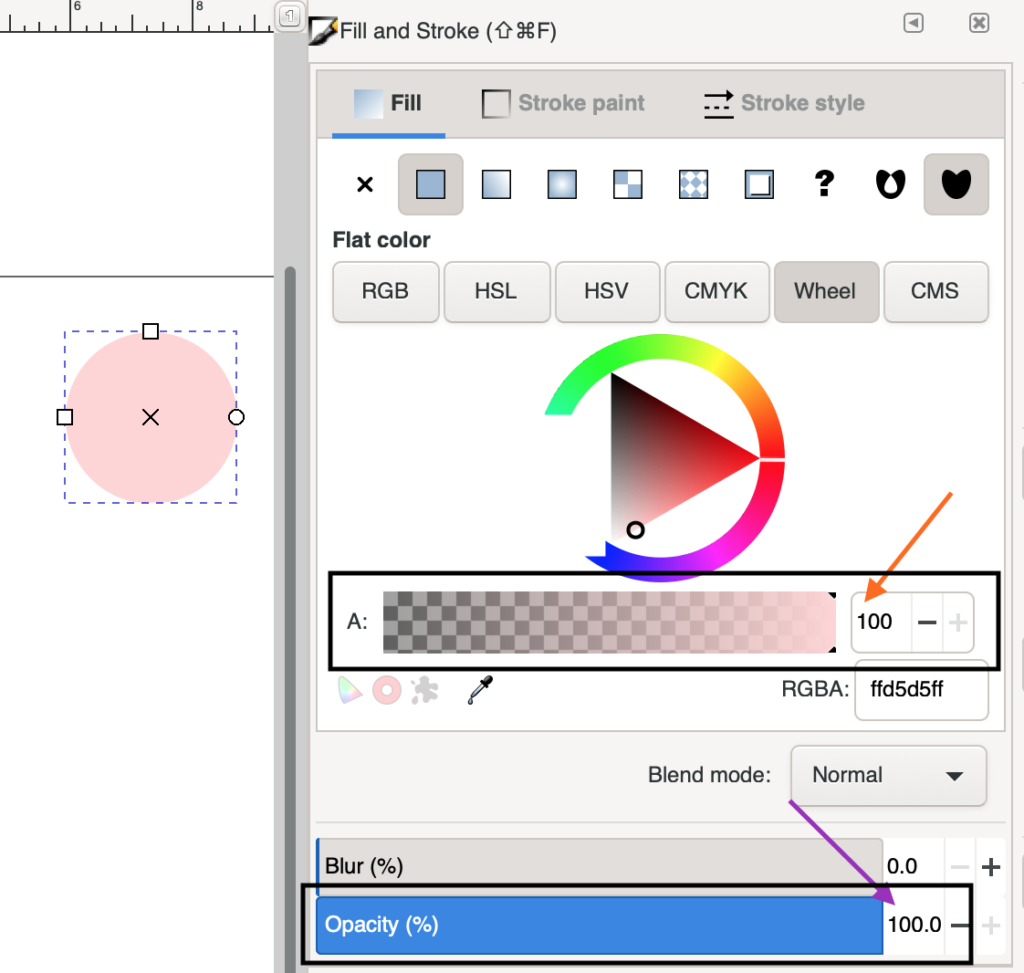
- Open the color and fill panel (paintbrush icon in top toolbar or use shortcut ctrl + shift + f on PC or cmd + shift + f on Mac)
- Make sure the Alpha setting is at “100” (orange arrow)
- Make sure the opacity setting is at 100% (purple arrow)
We also walk you through this step-by-step in the Fill & Stroke lesson of the Inkscape course at minute 5:30: https://members.svgandme.com/lessons/fill-and-stroke/
Question 2: Why are my fonts not showing up in Inkscape?
If you’ve installed a font and it is not showing up in Inkscape, make sure you’ve installed it for all users.
Here’s how to fix it:
- Copy and paste the font file on to your desktop
- Right click on the font file and select “Install for All Users”
- Open Inkscape and verify if it is now available. If it is not, you may need to restart your computer for it to show up. Once it has, you can delete the font file from your desktop and/or downloads folder.
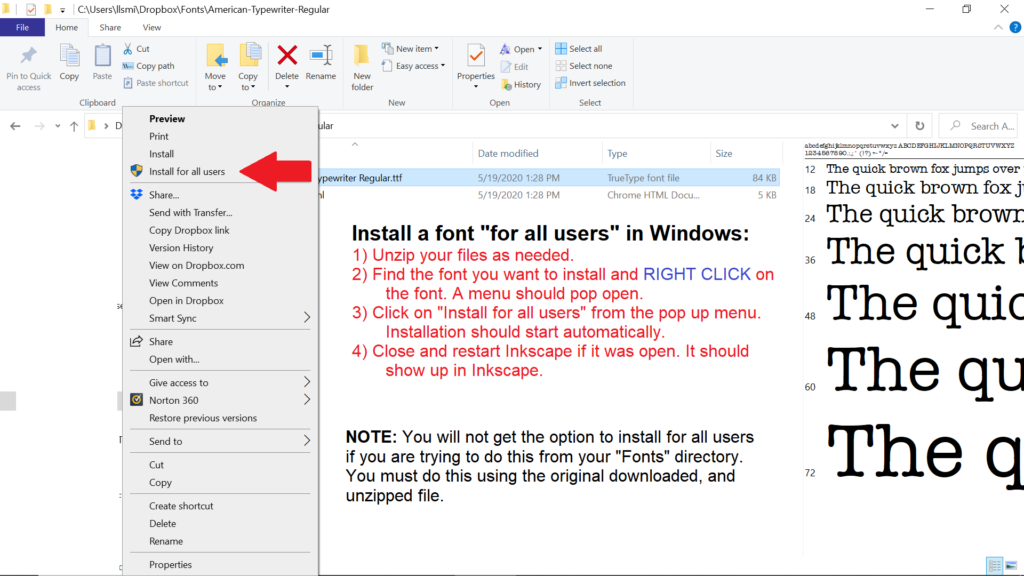
P.S. If a font has a OTF and TTF file type available, I recommend installing the OTF file type.
Question 3: I’m having trouble installing Inkscape – please help!
You’re in luck because the first video of the course walks you through exactly how to install Inkscape on a Mac or Windows computer step-by-step! https://members.svgandme.com/lessons/installing-inkscape/
Many members said this was the only thing that allowed them to finally install it after trying many times so don’t give up.
On the page linked above, you can find the direct link to the download page for Inkscape right below the videos to make sure you go to the correct download page.
Question 4: Why are my SVGs not opening in Inkscape? They are opening in my web browser instead.
Not to worry – you just need to set your default program for SVGs to Inkscape. I walk you through how to do that step-by-step in this video:
SVG Thumbnail Preview Extension
Question 5: How do I get my toolbar’s position to match yours?
Sometimes the toolbar that is at the top of my screen appears on the right of members’ screens, which can make it tough to follow along. If this is the case for you, simply make this easy change:
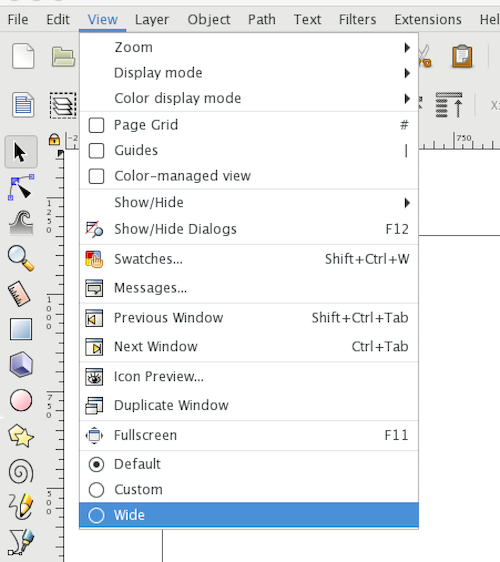
Go to View (top menu bar) and try the 3 different options at the bottom of the dropdown (Default, Custom and Wide) until you get the view that makes the toolbars match mine.
Question 6: My toolbar icons are tiny and I can barely see them. How can I make them larger?
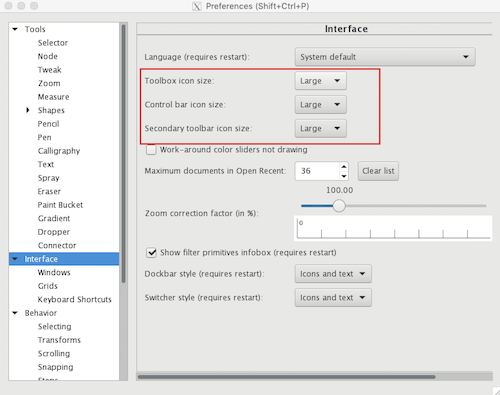
- Open the Inkscape Preferences panel (wrench icon in top of menu at the very right)
- Select “Interface” from the left hand menu.
- Change the icon size settings to “large” or “larger”
If this does not work, the problem may be related to your high definition computer monitor display. To fix this. Follow these instructions:
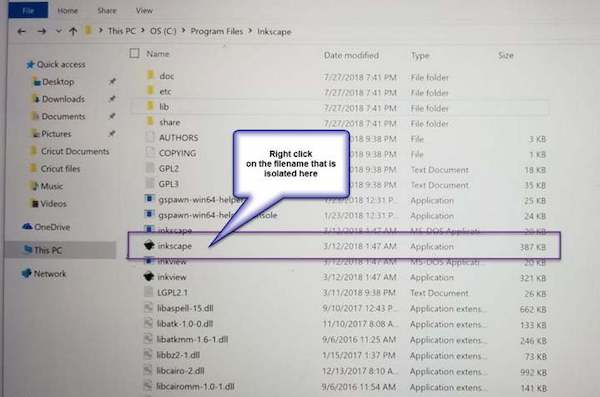
- Open the default installation location C:\Program Files\Inkscape\program\
- Locate the “Inkscape” .exe file (see screenshot above)
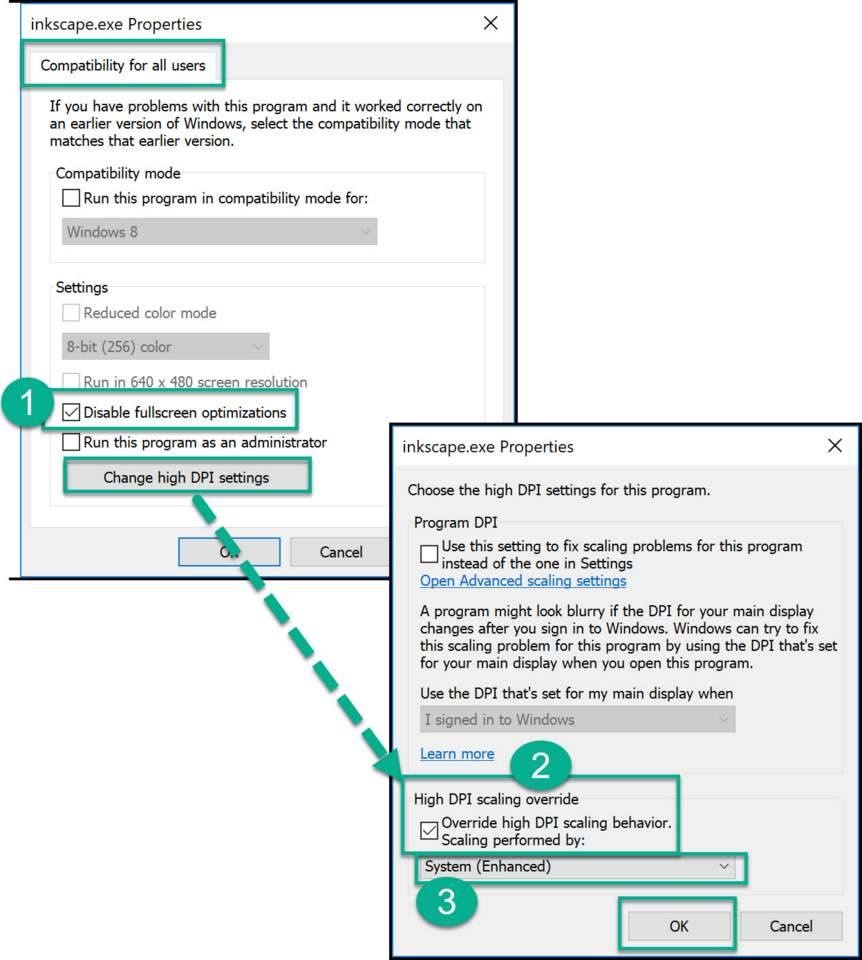
- Right click it, choose “Properties”, select the “Compatibility” tab.
- Then make your changes per the screenshot below. Save, restart your machine and test to confirm the change worked in Inkscape.
Question 7: When I upload a design to Design Space (or other cutting software) I get an error message that it contains unsupported elements. What am I doing wrong?
The most common reason for this is that you did not convert everything to a path before saving.
Here’s how to double check:
- Open the design and select all (ctrl + A)
- Hit the ungroup button (or shift + ctrl + g) five times to make sure everything is completely ungrouped.
- With everything still selected, go to Path > Object to Path.
- If you have any strokes (lines) in your design, select them and make sure they’ve been converted to a path with Path > Stroke to Path.
- Open a new document (ctrl + N) and copy (ctrl + c) and paste (ctrl + v) the design into it and save again. I find that sometimes there are remnants from the design process that cause this error message that you may not see so copying to a new document helps.
- Save and upload again and see if that fixes it. If it does not, review the other troubleshooting tips in this video: https://members.svgandme.com/troubleshooting-upload-svgs-design-space/
Question 8: I can’t find my design on the page when I upload it to my cutting software!
Not to worry, this just has to do with the placement of the design within Inkscape before saving.
Here’s how to fix it:
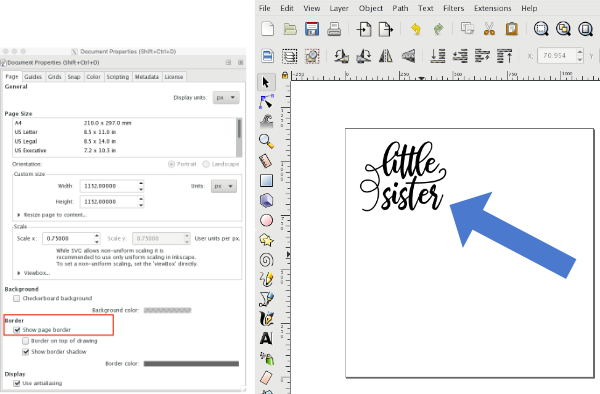
- Open the design within Inkscape.
- Make sure you have the page borders back on. Go to File > Document Properties and check the box (towards bottom) that says “Show page border”
- Place your design in the upper left corner of your page then “Save” again. Now you’re all set to upload!
Question 9: I can’t get my practice document opened – how do I do it?
Check out the video below as well as FAQ #4 if it is opening in your web browser instead of in Inkscape when you double click on it.
Question 10: Why won’t the page or video load in my web browser?
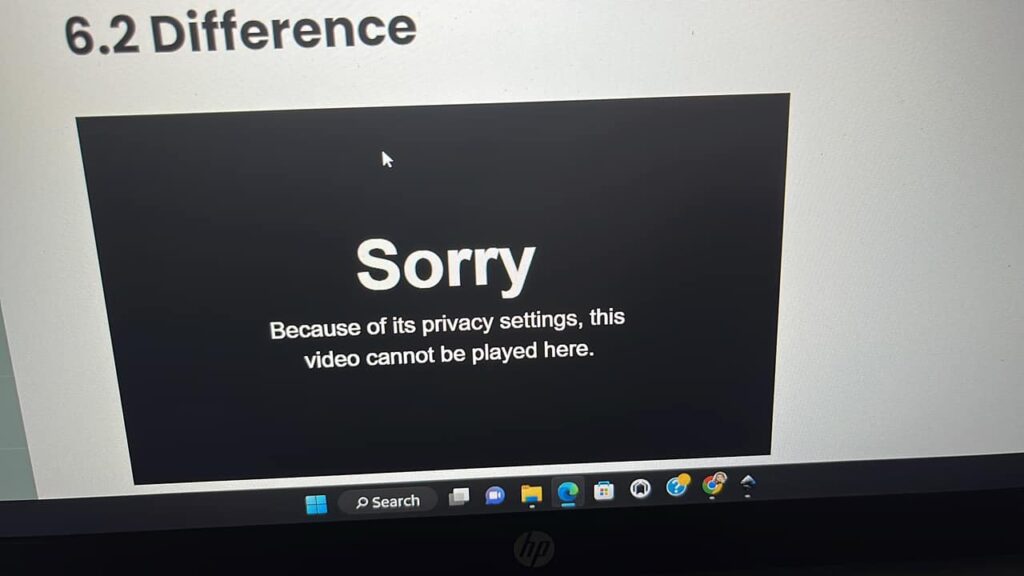
This is likely because of a plugin you have installed on your browser, but there’s an easy fix!
Go to the File dropdown in the top menubar of your web browser and select “New Incognito/Private Window” (naming will vary based on what web browser you use). Then navigate back to our membership site (members.svgandme.com) and your videos should now play!
Question 11: How do I get my Inkscape screen to match yours as closely as possible?
Check out this video!