


Katie Letizia
,@kletizia
1
Friends
You need to log in or create an account to post to this user's Wall.
-

Erica Martin commented on the post, Heartbeat Designs 7 years, 5 months ago
You’re welcome!
-
Erica Martin wrote a new post 7 years, 5 months ago
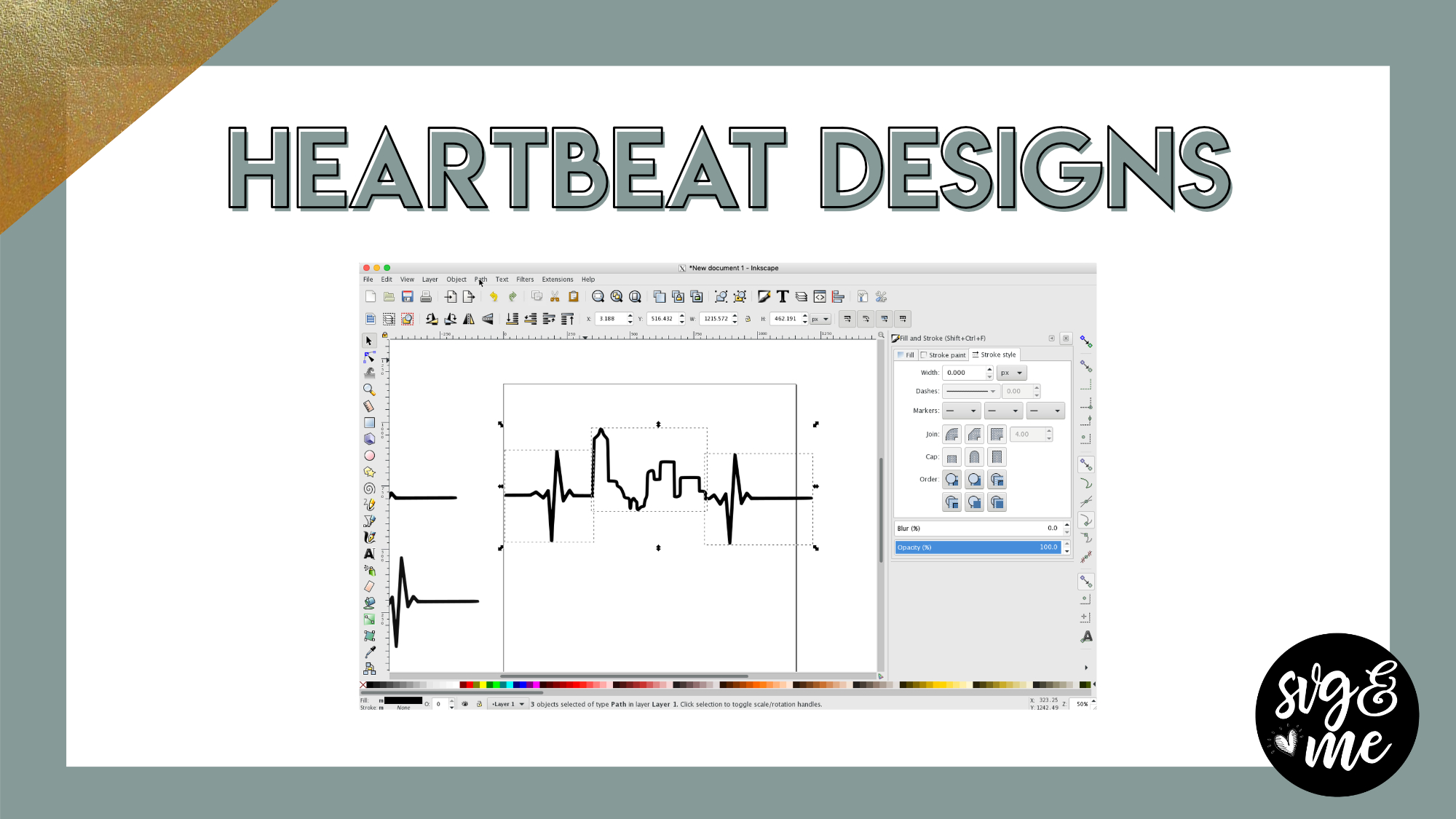
Learn to create your very own one of these super popular heartbeat designs! I’ll go over 3 different ways to create them: the traditional outlined image, text, and a solid silhouette version.
Download the […]
-
Erica Martin commented on the post, How to Fill Shapes with Text in Inkscape 7 years, 5 months ago
So glad you’re enjoying them! Can you send me a screenshot and maybe even the file itself? I’m happy to take a look [email protected]
-
Erica Martin commented on the post, Knockout Name Using Inkscape 7 years, 5 months ago
Got your email and responded 🙂
-
Erica Martin commented on the post, Troubleshooting: Uploading SVGs to Design Space 7 years, 5 months ago
Thanks! Glad it helped!
-
Erica Martin commented on the post, Knockout Name Using Inkscape 7 years, 5 months ago
Are you sure you have both selected? Feel free to send a screenshot to [email protected]
-
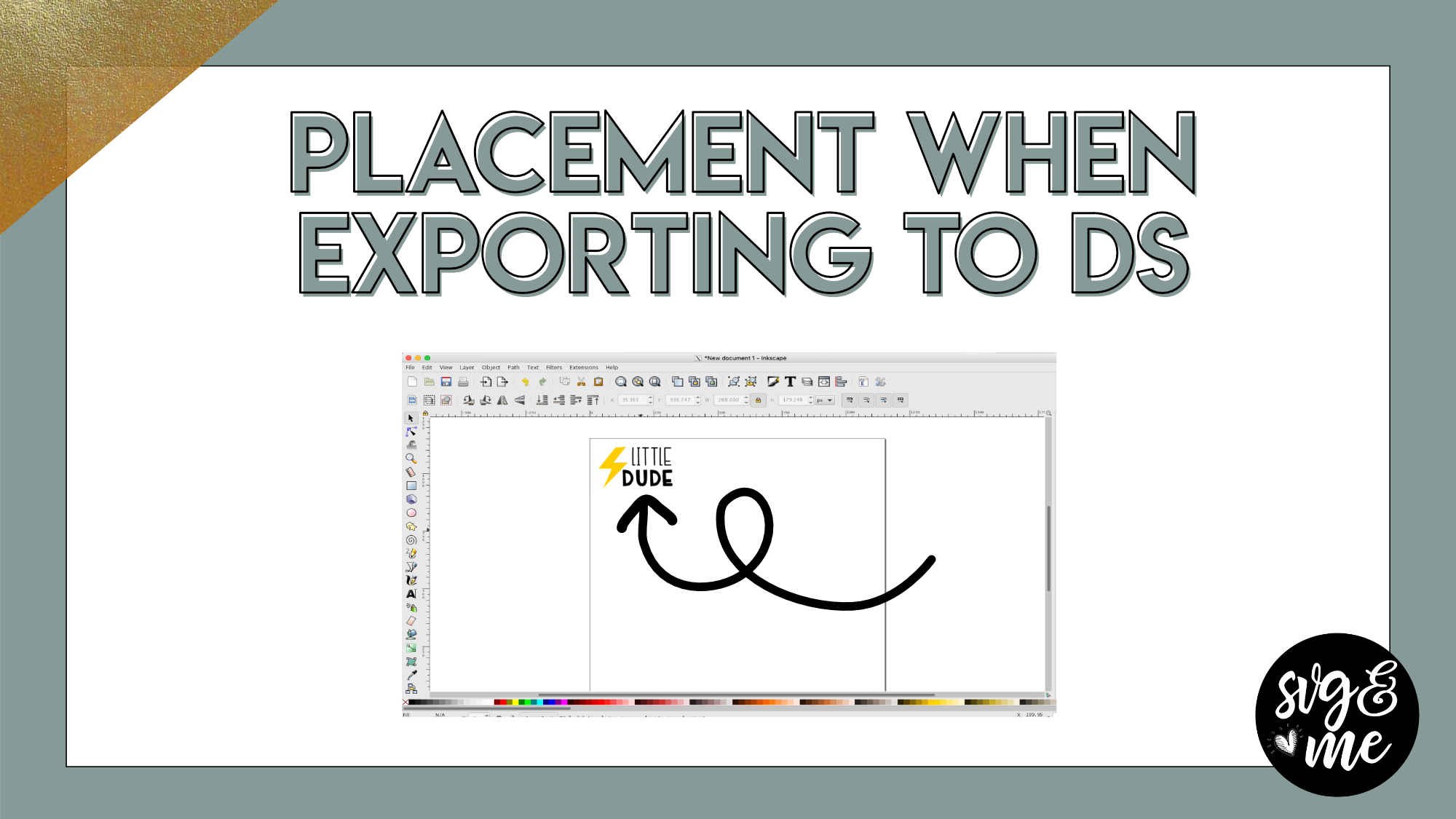
Erica Martin commented on the post, QW: Placement When Exporting from Inkscape 7 years, 5 months ago
You’re very welcome!
-
Erica Martin commented on the post, QW: Placement When Exporting from Inkscape 7 years, 5 months ago
You bet!
-
Erica Martin wrote a new post 7 years, 5 months ago
-
Thank you!!!
-

You bet!
-
-
That’s great, thank you!
-
You’re very welcome!
-
-
So helpful
-
Glad to hear it!
-
-
Thank You
-
-
Erica Martin commented on the post, DIY Organizing Labels 7 years, 5 months ago
Can you send me the file? [email protected]
-
Erica Martin commented on the post, Quick Win: Candy Cane Monogram 7 years, 5 months ago
I don’t think I saw it come through yet
-
Erica Martin commented on the post, Quick Win: Candy Cane Monogram 7 years, 5 months ago
Ok sounds good
-
Erica Martin commented on the post, DIY Organizing Labels 7 years, 5 months ago
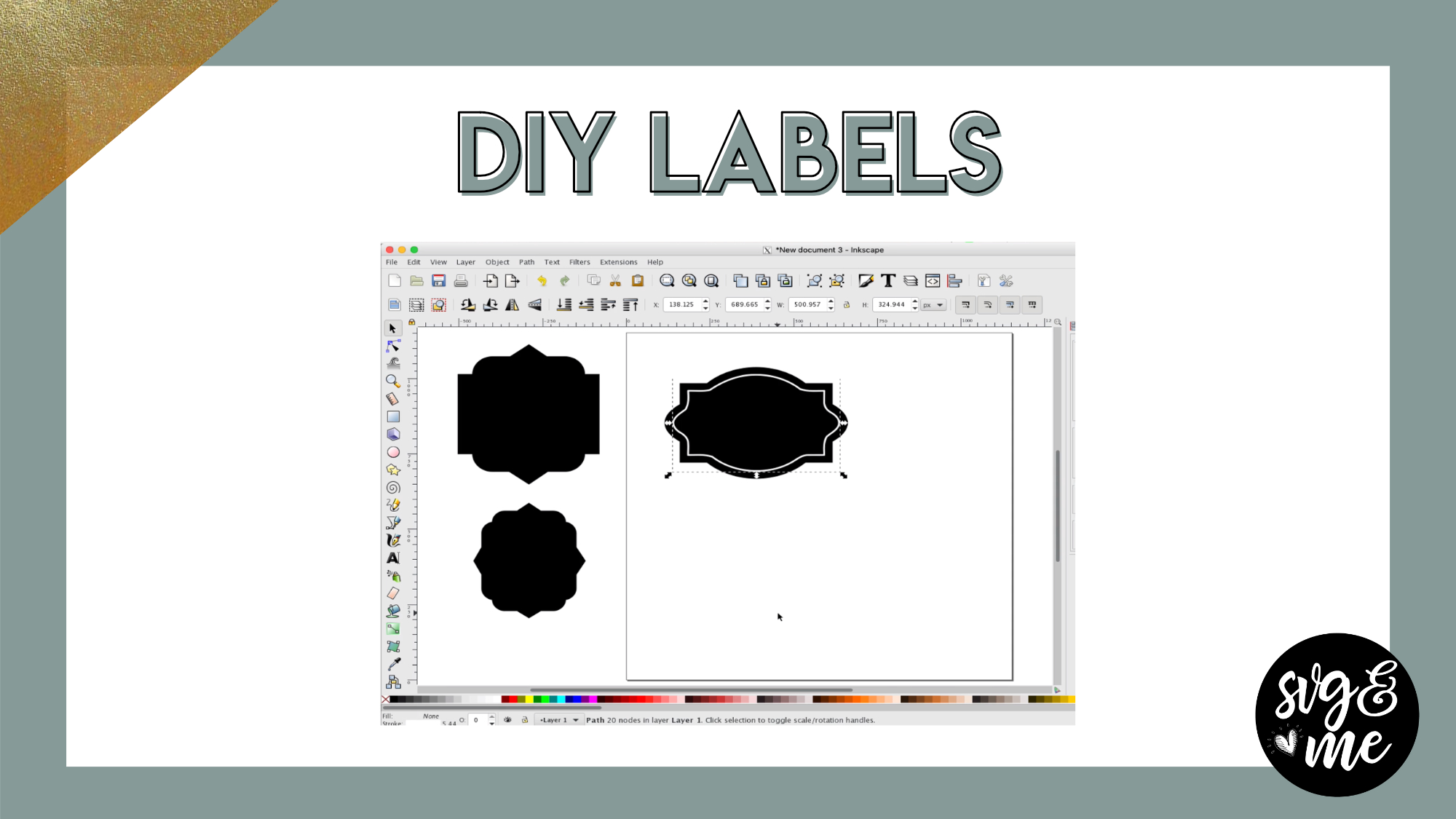
You’ll know it’s a SVG if there are nodes around it. You actually wouldn’t need to import it you would just go to File > Open and be able to open it in Inkscape. If there are not nodes around it, you’ll need to trace it before using it to create an inset.
-
Erica Martin commented on the post, Quick Win: Candy Cane Monogram 7 years, 5 months ago
Do you duplicate the monogram before doing the intersection? If so, you may want to take a video with your phone of what you do and I can better help if you email that. [email protected]
-
Erica Martin commented on the post, Knockout Name Using Inkscape 7 years, 5 months ago
We have a lesson in the Inkscape course on exporting SVGs and a checklist in the workbook that goes along with it. The key thing is to ensure everything is converted to a path. So, select it all and go to Path > Object to Path. Then you can save as a SVG and upload to DS. For more in depth instructions, I recommend watching the lesson in the course.
-
Erica Martin commented on the post, DIY Organizing Labels 7 years, 5 months ago
So glad you enjoyed it!
-
Erica Martin wrote a new post 7 years, 5 months ago
Download Members-Only Set of Pre-Made Labels
I think you’re going to really enjoy today’s tutorial on creating your own organization labels simply by combining basic shapes together in Inkscape.
Have fun […]
-
Love this, and especially the tutorial Tuesday, need to get back to creating
-
So glad you enjoyed it!
-
-
Thanks so much, I was able to do this so cool. I have an svg that I want to make an inset of. I thought if I imported an svg file then it would already be a path but it tells me it is just a layer, what am I missing? Please help
-
You’ll know it’s a SVG if there are nodes around it. You actually wouldn’t need to import it you would just go to File > Open and be able to open it in Inkscape. If there are not nodes around it, you’ll need to trace it before using it to create an inset.
-
-
I opened my svg file, I duplicate and hit Ctrl + (
Nothing happens! Am I missing a step? -
Erica, it tells me no paths selected to inset/outset ev
en though I have the image selected, I must be missing something-
Can you send me the file? [email protected]
-
-

I am having the same problem as ssamara59 . I hit Ctrl+( and all it does is shrink my gray label. Even if i go to Path/inset nothing happens. I can go to stroke style and add it that way but when i go back to add the white line to it nothing happens. I have watched you over a dozen times and have done exactly as you said but there must be a setting i have different.. <—-baffled
-
Shrinking the grey label is what you are trying to do. The, once you get it shrunk down to the size you want, you add the stroke (hold shift and click white). If this isn’t working, can you record a video of what seems to be happening? You can email me at [email protected]
-
Thank You
-
I’m learning a lot hank You
-
Yay! So great to hear that! You’re very welcome 🙂
-
-
-
Erica Martin commented on the post, Distressed Effect 7 years, 6 months ago
You’re welcome!
-
Erica Martin commented on the post, Distressed Effect 7 years, 6 months ago
Not a foolish question at all! You absolutely can do that! If you want to cut around it, you can do it via print and cut or just print the design from Inkscape.
-
Erica Martin commented on the post, Mosaic Effect 7 years, 6 months ago
I am guessing that you may have something grouped so try ungrouping using the ungroup button or shift + ctrl + g. If that doesn’t work, make sure that you just have two objects selected before you do the difference.
- Load More


THANK YOU
You’re welcome!
Thanks so much
You bet!
Erica,
Thank you. I always learn something new. I am wanting to learn how to create the ekg (Heart beat) from scratch. You started this tutorial with the heart beat already uploaded. I see a lot out there but they are not what I am looking for… (Being a nurse I have a specific one in mind that I would like to create _one that actually looks proper). Thanks
Haha, no problem! You could create the heartbeat from scratch using the pen tool, just create the stroke (and thickness you want) and then convert to a path (Path > Stroke to Path).
I was thinking that would be the way to do that. Thank you!
You’re welcome!
Thank you!
You bet!
The heartbeat link is not working for me to download. It takes me to a blank page in Dropbox.
Is there a button with three dots in the top right that you can click and select “Download”? I believe that it may look blank because the templates are off to the side. Once you download and open, let me know if you still can’t access it.
I downloaded this file and when I selected it from my downloads it comes out blank.
It could just be that it’s not showing since the templates are off to the side of the page. When you open it do you still not see it?
IT’s blank for me as well and I don’t see the templates anywhere
Thank You
Hi, Erica
Thank you …I am learning little by little but love your tutorials,,
So great to hear! Glad you are a member 🙂
I’m getting stuck at the Path -> Difference setting: Once I Union then then select both and go to path then difference, nothing happens, no slice/cut/delete nada. Have I missed a step?
I got it Erica, my cityscape was grouped.
Oh yes, ungrouping is always a good thing to double check when you run into issues 🙂